
Docs navigation
No results. You may also check the FAQ.
Logic: WHEN, macros, formatting
Template Editor Part 3, Conditional visibility, calculations and label parameters
Prerequisites
- Guides “Your first template” and “Objects & commands” completed
- Multiple data tabs created (at least one standard and one promotion case)
A template that always looks the same is a price tag. A template that reacts to data is a system. In this guide you teach your template to recognize promotions, calculate unit prices and report empty batteries.
The most common error source up front
The original documentation is unambiguous: IF conditions and WHEN statements are the largest error source in the Template Editor.
The classic: Your template accesses {EAN}, but the payload is missing <EAN="…">. The object disappears, without an error message.
Two aids:
- On processing errors, the faulty line is marked red, the status bar shows a message.
- The editor option “All objects” also shows the objects that are currently excluded by a WHEN condition. If an object is “gone”: check here first.
Three bracket types, three meanings
Before you write a single condition, internalize this table. It is the cause of most misunderstandings.
| Bracket | Meaning | Example |
|---|---|---|
<spitz> | Define, commands, parameters, test data | <PRICE="12,99"> · <CMD="TEXT"> |
{geschweift} | Use data field | {PRICE} |
(rund) | Query variable (only in WHEN) | (FILIALE) |
[eckig] | Macro field / WHEN command | [ISEMPTY~PREIS] · [CALC~…] |
Special case that is often overlooked: In WHEN conditions the tag name is specified without curly braces.
Correct: <WHEN="[ISEMPTY~ITEMNO]">
Incorrect: <WHEN="[ISEMPTY~{ITEMNO}]">
WHEN, conditional visibility
For every command a WHEN condition can be specified. The line is executed only when the condition is met.
<CMD="TEXT"><WHEN="[ISNOTEMPTY~PREIS]"><Y="0"><X="0"><WIDTH="50"><HEIGHT="25"><TEXT="{PREIS}"><COLOR="BLACK"><FONT="Calibri"><FONTSIZE="22">This text object appears only when the data field PREIS is filled.
The format
[Befehl~Parameter1~Parameter2]The number of parameters differs per command. Macros and data fields can be used in the parameters.
Combining conditions
| Parameter | Effect |
|---|---|
WHEN, WHENAND | All conditions must be met (AND) |
WHENOR | At least one condition must be met (OR) |
Multiple conditions are simply listed one after another:
<WHEN="[ISEMPTY~PREIS][ISTAG~SONDERPREIS]">→ Object appears only when PREIS is empty and SONDERPREIS is present.
The data tabs from Guide 2 pay off here. Create one tab each for the normal case and the promotion case, and switch between them while developing. You immediately see whether your condition applies, without touching the database.
Source: ESLEasy_TemplateEditor V2.7, WHEN, p. 66–67.
The WHEN commands at a glance
Check existence and content
| Command | Checks |
|---|---|
ISTAG | Is the data field present in the linked data? Tag name without {} |
ISNOTTAG | Is the data field not present? |
ISEMPTY | Is the data field empty? Field without {} |
ISNOTEMPTY | Is the data field not empty? |
ISVALUEEMPTY | Is parameter 1 (as value) empty? |
ISNOTVALUEEMPTY | Is parameter 1 not empty? |
ISTAG vs. ISEMPTY, the difference matters.
ISTAG asks: Does the field exist at all?
ISEMPTY asks: Does the field exist, and is it empty?
A field that does not exist at all is different from a field with empty content.
Comparisons, watch the data type
For every comparison there are three variants: String, Int and Float. That is no accident, "9" is greater than "10" as a string, but smaller as an integer.
| String | Integer | Float |
|---|---|---|
ISEQUAL | ISINTEQUAL | ISFLOATEQUAL |
ISNOTEQUAL | ISNOTINTEQUAL | ISNOTFLOATEQUAL |
| — | ISLESSTHAN | ISFLOATLESSTHAN |
| — | ISLESSEQUAL | ISFLOATLESSEQUAL |
| — | ISGREATERTHAN | ISFLOATGREATERTHAN |
| — | ISGREATEREQUAL | ISFLOATGREATEREQUAL |
Always compare prices with the FLOAT variants. An int comparison on 19,99 leads to unexpected results.
Text checks
| Command | Checks |
|---|---|
STARTSWITH / NOTSTARTSWITH | Does P1 (not) start with P2? |
ENDSWITH / NOTENDSWITH | Does P1 (not) end with P2? |
CONTAINS / CONTAINSNOT | Does P2 (not) occur in P1? |
ISLENGTHGREATERTHAN / ISLENGTHGREATEREQUAL | String length of P1 > or ≥ Int(P2) |
ISLENGTHLESSTHAN / ISLENGTHLESSEQUAL | String length of P1 < or ≤ Int(P2) |
ISLENGTHGREATERTHAN is the layout saver: Show a two-line text object only when the item name exceeds a certain length, and the single-line one otherwise.
Lists
| Command | Checks | Example |
|---|---|---|
ISINLIST | Is P1 contained in the list of further parameters? | [ISINLIST~Andreas~Peter~Andreas~Marc] → true |
ISNOTINLIST | Is P1 not contained? | [ISNOTINLIST~Eric~Peter~Andreas~Marc] → true |
CONTAINSINLIST | Is one of the parameters contained in P1? | [CONTAINSINLIST~Andreas~Pe~An~Ma] → true (“An” is in “Andreas”) |
CONTAINSNOTINLIST | Is none of the parameters contained in P1? | [CONTAINSNOTINLIST~Andreas~Pe~Ab~Ma] → true |
ISINLIST replaces long OR chains. Instead of five ISEQUAL conditions with WHENOR you write a list, e.g. for product groups that should get the same symbol.
Date comparisons
Both parameters must be valid dates. Macros can be used here, that makes these commands powerful.
| Command | Example |
|---|---|
ISDATEEQUAL | <WHEN="[ISDATEEQUAL~%%TODAY%%~{HOLIDAY}]"> |
ISDATENOTEQUAL | <WHEN="[ISDATENOTEQUAL~%%TODAY%%~{HOLIDAY}]"> |
ISDATEGREATERTHAN | <WHEN="[ISDATEGREATERTHAN~%%TODAY%%~2023-01-01]"> |
ISDATELESSTHAN | <WHEN="[ISDATELESSTHAN~%%TODAY%%~2023-12-31]"> |
ISDATEGREATEREQUAL | <WHEN="[ISDATEGREATEREQUAL~%%TODAY%%~2023-01-01]"> |
ISDATELESSEQUAL | <WHEN="[ISDATELESSEQUAL~%%TODAY%%~2023-12-31]"> |
The use case: A promo flash that turns itself off. Combine ISDATEGREATEREQUAL and ISDATELESSEQUAL with the promotion-period fields from your ERP, the label shows the flash only within the period, with no manual intervention.
Files
| Command | Checks |
|---|---|
ISFILE | Is the file specified in P1 present? |
ISNOTFILE | Is the file not present? |
Useful for item images: ISFILE checks whether a product image exists, and otherwise shows a placeholder.
Source: V2.7, “List of WHEN commands”, p. 67–71.
IF / ELSE / ENDIF, switch entire sections
WHEN switches one line. IF switches entire sections.
IF is always used together with WHEN. There is an ELSE section for the alternative case; it is closed with ENDIF. Nested IF conditions are possible.
<CMD="IF"><WHEN="[ISTAG~NAME]">
    <CMD="TEXT">…
    <CMD="TEXT">…
<CMD="ELSE">
    <CMD="TEXT">…
    <CMD="TEXT">…
<CMD="ENDIF">
When WHEN, when IF? Show or hide a single object → WHEN. Two complete layout variants (e.g. normal-price block vs. promotion block) → IF/ELSE.
Source: V2.7, IF, p. 71–72.
Variables
Variables define values in the template that can be queried in WHEN conditions.
<CMD="SETVARIABLE"><NAME="FILIALE"><VALUE="0815">
<CMD="CLEARVARIABLE"><NAME="FILIALE">
<CMD="CLEARALLVARIABLE">
Query with round brackets:
<CMD="TEXT"><WHEN="[ISEQUAL~(FILIALE)~0815]"><X="334"><WIDTH="153"><HEIGHT="62"><TEXT="FILIALE stimmt mit 0815 überein"><COLOR="BLACK"><FONT="Calibri"><FONTSIZE="22"><Y="519">Round brackets only for variables. Data fields in WHEN conditions are specified without brackets ([ISEMPTY~PREIS]), variables with round brackets ([ISEQUAL~(FILIALE)~0815]). This inconsistency is a classic error source.
Source: V2.7, Variables, p. 61.
Macros
Macros are replaced in the command line by the corresponding value. For output, the operating-system formatting applies by default, a custom format overrides it:
<DATEFORMAT="dd.MM.yyyy">   → 31.12.2020
<TIMEFORMAT="HH:mm:ss">     → 12:09:23
Date
| Macro | Value |
|---|---|
%%TODAY%% | Current date |
%%TODAYMINUSONE%% … %%TODAYMINUSFIVE%% | Current date − 1 … − 5 days |
%%TODAYPLUSONE%% … %%TODAYPLUSFIVE%% | Current date + 1 … + 5 days |
%%TOMORROW%% | Tomorrow |
%%FIRSTDAYOFTHEWEEK%% | First day of the current week |
%%WEEK%% | Calendar week of the current date |
%%DAY%% / %%MONTH%% | Current day (dd) / month (MM) |
%%SHORTYEAR%% / %%LONGYEAR%% / %%YEAR%% | Year as yy / yyyy / yyyy |
Weekdays
| Macro | Value |
|---|---|
%%WEEKDAY%% | Current weekday as text |
%%WEEKDAYPLUSONE%% … %%WEEKDAYPLUSSIX%% | Weekday + 1 … + 6 as text |
Weekdays appear in the configured locale of the PC, not in the language of the template. For branches abroad, check this carefully.
Time and system
| Macro | Value |
|---|---|
%%TIME%% | Current time (HH:mm:ss) |
%%HOUR%% / %%MINUTE%% / %%SECOND%% | Hour / minute / second |
%%IPADRESS%% | Current IP address |
%%IPADRESSES%% | All IP addresses, comma-separated |
%%HOSTNAME%% | Hostname of the PC |
%%APPPATH%% | Application program path |
%%VERSION%% / %%TOOLSVERSION%% | Program/DLL version (internal use) |
Documentation quirk: The original documentation lists %%YESTERDAY without closing %%, likely an error in the PDF. Do not rely on it; if you need “yesterday”, test both spellings.
Source: V2.7, Macros, p. 62–63.
Macro fields, calculate and transform
In certain fields, additional macro evaluations are possible, specified with square brackets.
Where macro fields work:
| Command | Fields with macro evaluation |
|---|---|
TEXT | FILE, TEXT |
IMAGE | FILE |
BARCODE | TEXT |
QRCODE | TEXT |
PRICE | TEXT, IMAGE |
BARGRAPH | PERCENT |
NFC | PAYLOAD |
DATAVALUE
[DATAVALUE~Datenfeld] accesses a data field, the alternative notation to {Datenfeld}.
Inside macro fields this notation is required. You cannot nest {PRICE} in a [SPLITREPEAT~…], there you must use [DATAVALUE~PRICE].
CALC, calculations in the template
New in version 2.6. [CALC~Rechenformel~Formatierung] calculates values from fixed numbers or data fields. Complex expressions with nested brackets are possible.
<TEXT="Grundpreis [CALC~{PRICE}/{QUANTITY}~0.00]€ / {UNIT}">Output e.g.: Grundpreis 59.60 € / kg
[CALC~…~0.00|0|.] → 59.60In the second example: two decimal places, the decimal separator is replaced by a period (if it is e.g. a comma).
The unit price no longer has to come from the ERP. If price and quantity are in the data, the template calculates it itself, one fewer data-field requirement on the inventory system.
SPLITREPEAT
[SPLITREPEAT~Text~Trennzeichen~Teilstring~Ersatzzeichen] splits a text at the separator and rebuilds it reformatted. __SPLITVALUE__ accesses the original substring; free text is repeated for each part.
<TEXT="[SPLITREPEAT~[DATAVALUE~LIST]~,~__SPLITVALUE__~-]">
Datenfeld: <LIST="Jan,Feb,Mar,Apr">
Ergebnis:  Jan-Feb-Mar-Apr
<TEXT="[SPLITREPEAT~1,2,1~,~X~---]">
Ausgabe: X---X---XREGEX
[REGEX~Text~Pattern~] evaluates a regular expression; the result is inserted as text.
<TEXT="[REGEX~Eins Zwei Drei~\b[A-Z]~]">
Ausgabe: EZD
Source: V2.7, Macro fields p. 63–64; DATAVALUE p. 64; SPLITREPEAT p. 64; REGEX p. 65; CALC p. 65 (new in V2.6).
Formatting data fields
Raw data from the ERP is rarely display-ready. Prices arrive without a decimal separator, numbers without decimal places. There is a dedicated formatting syntax for that.
Format: {@@Datenfeld|Formatangabe|Teilungsfaktor}
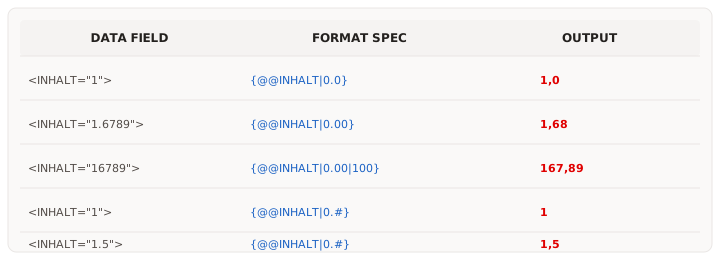
Number formats
| Specification | Meaning | Example |
|---|---|---|
0 | Digit is always output, missing digits filled with 0 | <INHALT="1"> + {@@INHALT|0.0} → 1,0 |
<INHALT="1.6789"> + {@@INHALT|0.00} → 1,68 | ||
# | Digit is only output if present | <INHALT="1"> + {@@INHALT|0.#} → 1 |
<INHALT="1.5"> + {@@INHALT|0.#} → 1,5 |
The division factor
The third parameter solves a very concrete problem: prices stored in the ERP without a decimal separator.
<INHALT="16789"> + {@@INHALT|0.00|100} → 167,89The value is divided by 100 and then formatted. No data export needs to be adjusted.
Text formats
| Specification | Meaning | Example |
|---|---|---|
L + count | Outputs the specified number of characters from the left | <INHALT="1.12345"> + {@@INHALT|L4} → 1.12 |
R + count | Outputs the specified number of characters from the right | <INHALT="1.12345"> + {@@INHALT|R4} → 2345 |
S + start,count | Substring: start position (beginning at 0) and character count |
CEILING and FLOOR are also available, they were added with version 2.3 (05.05.2023). Details in the original docs, p. 72–74.
Source: V2.7, “Formatting of data fields”, p. 72–74.
PAGE, multiple views per label
ESL labels can store multiple views. The currently active one is always shown. For each view you define your own source-code section.
<CMD="PAGE"><PAGENO="1">
<CMD="TEXT">…
<CMD="TEXT">…

<CMD="PAGE"><PAGENO="2">
<CMD="TEXT">…
<CMD="ELLIPSE">…
From the PAGE line onward, all following lines are assigned to that page. Without a PAGE command everything lands on the first page.
Two limitations:
- The graphical editor always shows only the selected page.
- The function “Send current view to a label” does not consider pages, only the current view is transferred.
Switching the view on the labels is done via ESL-Easy Server commands, not via the template.
Source: V2.7, PAGE, p. 65–66.
Label parameters: __HS_*
To close: the feature that connects logic, data and hardware.
Labels deliver data themselves. Depending on the manufacturer these are battery level, radio quality, serial number, size, resolution and further parameters. You access the data of the currently linked label in the template like normal data fields.
ESL label parameters always start with __HS_, for example __HS_BATTERY delivers the battery level in percent on Ontime labels.
You can retrieve a list of available parameters in the editor via button: enter the label ID, the parameters are inserted into the data list.
The use case: “Low battery” symbol
Combine __HS_BATTERY with a WHEN condition, and the label reports its own weak battery:
<CMD="IMAGE"><WHEN="[ISINTLESSTHAN~{__HS_BATTERY}~5]"><FILE="lowbattery.png">…The symbol appears only when the battery level is below 5%. No monitoring tool, no report, the label says it itself.
The meaning of the values is manufacturer-dependent. __HS_BATTERY delivers percent on Ontime, do not assume another manufacturer uses the same scale. Retrieve the parameter list for your specific label.
Source: V2.7, “ESL label data”, p. 21–22.
Further data sources in the template
These topics belong to data linking and complement the logic features:
| Topic | Short description | Docs |
|---|---|---|
| Location tags | Data fields stored per location that behave like master data. The same DataID delivers different values in location 1 and location 2. Maintain via double-click on “DataObject”. | p. 18–20 |
| Dynamic tag names | Tag names can be assembled: +Tag-Name+ accesses the content of a tag in the name. Example: <WHEN="[ISNOTEMPTY~ENERGY_CLASS_2017_+LANGUAGE+]"> checks the tag ENERGY_CLASS_2017_DE when LANGUAGE="DE". The key to multilingual templates. | p. 20 |
| SET, sub-records (new in V2.7) | Set items via <_SETx_DATAID="">. All fields of the SET DataIDs are available with the prefix _SETx_ ({_SET1_DESCRIPTION}). If numbering has gaps (ERP delivers 1, 3, 5), <_SET#x_Datenfeld> accesses them in sorted order. | p. 17 |
| PARAM | Label-specific parameters that the user sets at linking time (see Guide 3). | p. 54–55 |
Further reading
- Previous guide: Objects & commands
- Series start: Your first template in 15 minutes
- Full reference: Original PDF ESLEasy_TemplateEditor 2.7_EN, p. 61–74
Source document: Template Editor · v2.7