
Docs navigation
No results. You may also check the FAQ.
Data import with FileImporter & BulkImporter
Import CSV and Excel data into ESL-Easy automatically
Prerequisites
- ESL-Easy installed, ESLEasy_Server running
- Access to the file system of the ESL-Easy server
- A CSV or Excel export from your ERP system
The fastest way to connect your ERP system to ESL-Easy: Place a file in a folder, ESL-Easy detects the changes and updates all affected labels automatically.
What this is about
ESL-Easy imports data from Excel, CSV and XML sources. Two modules are available for this: the FileImporter and the BulkImporter. The process is the same for both:
You place a file in a monitored folder. ESL-Easy processes it automatically, detects what has changed compared to the previous import, and updates all labels linked to that data.
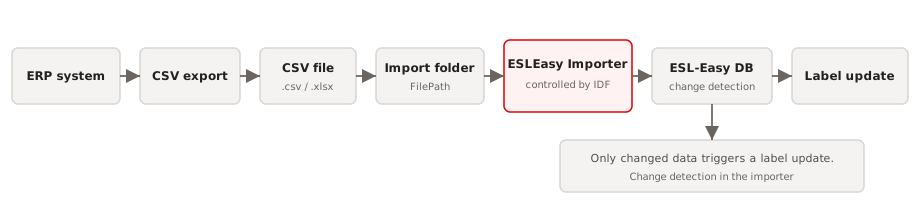
Source: ESLEasy_FileImporter und ESLEasy_BulkImporter V2.3 (03.09.2025), section “Allgemeines”, pp. 4–5.
Step 1, FileImporter or BulkImporter?
This decision is made before configuration, because it determines which INI sections you need.
| ESLEasy_FileImporter | ESLEasy_BulkImporter | |
|---|---|---|
| Path to the data | Sends all changes to the ESLEasy_Server | Requires direct access to the ESL-Easy database |
| Speed | Normal | Faster, designed for bulk import |
| Special feature | Can also send direct execution commands (e.g. targeted label updates via import file) | — |
| Relevant INI section | [ESLEASY_SERVER] | [SQL] / [MSSQL] / [FIREBIRD] |
Rule of thumb: Large master data volumes imported cyclically → BulkImporter. Import plus control commands → FileImporter.
Excel requirement: Before program version 1.2.0.0, a locally installed Microsoft Excel was required (Excel 2019 recommended). From version 1.2.0.0, Excel is no longer required, neither for XLS nor for XLSX. From program version 1.2.0.0, .NET Framework 4.8 is required.
Source: V2.3, “Allgemeines — Unterschied der Module”, pp. 4–5.
Step 2, Configure the INI file
The operating parameters are stored in ESLEasy_FileImporter.ini or ESLEasy_BulkImporter.ini.
The base sections
[LOOP]
Interval=20                 ; Sekunden zwischen den Prüfläufen

[PATH]
FilePath=C:\ESLEasy\ESLEasy_FileImporter\Files
ProcessedPath=C:\ESLEasy\ESLEasy_FileImporter\Files\Ablage
ErrorPath=C:\ESLEasy\ESLEasy_FileImporter\Files\Fehler

[IDF]
Encoding=UTF8
IdfNeeded=TRUE

[LOG]
LogLevel=1
[LOOP] Interval=, the interval in seconds at which the program checks for new files.[PATH], the three working folders.FilePathis the monitored import folder,ProcessedPaththe destination for successfully processed files,ErrorPathfor failed ones. These three folders are the core of the process.[IDF] Encoding=, encoding of the IDF file.IdfNeeded=TRUErequires that a matching IDF or theMaster.idfis present.[LOG] LogLevel=, scope of logging. The import history is stored in a daily log file in the.\Logfolder.
The module-dependent block
FileImporter only, connection to the server:
[ESLEASY_SERVER]
IP=127.0.0.1
Port=49890
User=IXOP
Pass=POXI
EncodingRead=UTF8
EncodingWrite=UTF8
Encryption=false
BulkImporter only, connection to the database:
[SQL]
Type=Firebird
DateTimeFormat=dd.MM.yyyy HH:mm:ss

[FIREBIRD]
ConnectionString=Server=127.0.0.1;Port=49125;Charset=UTF8;User ID=SYSDBA;Password=<PASSWORD>;Database=C:\ERP\ERP.FDB
passencrypted=TRUE
Alternatively, a ConnectionString for Microsoft SQL Server is available under [MSSQL].
Source: V2.3, “Konfiguration”, pp. 5–8.
Step 3, The folder process
This is the core of the system, and it is deliberately kept simple.
- Copy the import file. Place the file (
.xls,.xlsxor.csv) in the FilePath folder. Nothing more is required. - Wait. The program checks for new files at the
[LOOP]interval and processes them automatically. - Success: The file is moved to ProcessedPath, into a newly created folder named with the current timestamp.
- Error: The same happens with the ErrorPath.
If a file does not disappear: If a data row cannot be sent (FileImporter) or cannot be written to the database (BulkImporter, e.g. with an incorrect ConnectionString), processing is aborted. The file remains in FilePath and is processed again on the next run.
This is not a hang, but a retry. Check the log under .\Log.
Time-controlled import
If the file name ends with @ plus a timestamp in the format yyyyMMddHHmmss, the file remains in the import folder until that time is reached.
MasterData@20231102170000.xlsx→ Import only on 02.11.2023 from 17:00.
The masks used can be adjusted in the INI under [IMPORTTIMESTAMP] (defaults: TimestampMask=yyyyMMddHHmmss, TimestampSeparator=@).
Source: V2.3, “Ordner-Struktur und Ablauf”, pp. 8–9.
Step 4, File structure and required fields
For ESL-Easy to use the data, each record needs at least one key field: the __DATAID. In addition, a description should be provided as __DESCRIPTION.
There are two approaches:
- Directly in the file: Simply name two columns
__DATAIDand__DESCRIPTION, they are processed automatically. - Via the IDF file: The usual case, because the ERP export usually cannot be changed. You define the mapping in the IDF (e.g. “field Artikel serves as
__DATAID”).
Invalid characters in field names: <, >, " (quotation marks), *, \. An empty field is possible, but not recommended.
Field names must not begin with two underscores, this namespace is reserved for internal processing (e.g. __DATAID).
Source: V2.3, “Dateiaufbau”, pp. 9–10.
Step 5, The IDF file
The IDF is the real lever. You need it whenever the data file is not directly processable (e.g. the __DATAID column is not recognizable) or when data must be modified during import.
The one rule you need to remember:
The IDF uses the name of the import file plus the extension .IDF and is placed in the same FilePath folder.
Artikel.csv → Artikel.idf
The starting problem
Our sample file does not contain clean values, but text with embedded numbers:
"Art-Nr. 10101","Becks Pils 24 x 0.33 l MW","Inhalt/Fl.: 0,33","EUR/l 1,89","zzgl. Pfand EUR: 3,42","EUR/Gebinde: 14,99"ESL-Easy cannot work with this. A header is missing, the text portions must be removed, and the article number must be recognized as __DATAID. That is exactly what the IDF does.
The IDF section by section
[CSV], define separator, quotation marks, header
[CSV]
Separator=,
QuotationMark=TRUE
Header="ArtNr","Beschreibung","Inhalt","Grundpreis","Pfand","Preis"
With QuotationMark=TRUE, all fields (header and data) must start and end with the QuotationMarkChar. The characters are removed during import.
[DATA], control import behaviour
[DATA]
DeleteBeforeImport=FALSE
TrimAll=TRUE
UpdateLabels=TRUE| Parameter | Effect |
|---|---|
DeleteBeforeImport= | TRUE = existing data in ESL-Easy is deleted before the import |
TrimAll= | Remove leading spaces from all data fields |
UpdateLabels= | Affected labels are updated after the import when data has changed, you almost always want this switch |
PreserveExistingData= | TRUE = existing tags of a DataID are kept if they are missing from the import data |
TrimStart= / TrimEnd= | Characters removed from the start/end of every field |
[ADDTAG], add the required fields
[ADDTAG]
__PROGRAM=PUTDATA
__DATAID=<ArtNr>
__DESCRIPTION=<Beschreibung>
__STARTTIME=%%TODAY%%__PROGRAM=PUTDATAtells the server that the payload data should go into the product database, this is the normal data import. Further commands:PUTDATALOCATION,PUTREFERENCE,UPDATEDATAID,ADDQUEUETASK. Note:__PROGRAMapplies only to the FileImporter.__DATAID=<ArtNr>, the angle brackets refer to a column of the import data. Multiple columns and free text can be combined.__STARTTIME=%%TODAY%%, processing time. Without a value: immediately.
[REPLACEVALUE], remove the text portions
[REPLACEVALUE]
ArtNr=Art-Nr.|
Inhalt=Inhalt/Fl.:|
Grundpreis=EUR/l|
Pfand=zzgl. Pfand EUR:|
Preis=EUR/Gebinde:|
The syntax is search text|replacement. We leave the replacement empty, so Inhalt/Fl.: is replaced by nothing, and the pure value 0,33 remains.
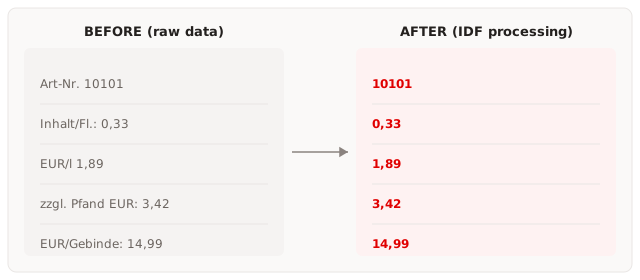
Further IDF sections at a glance
You do not need these sections for the first import, but sooner or later you will:
| Section | Function |
|---|---|
[CHANGETAG] | Replace column names of the import file with new names (e.g. Regalpl. 1=REGALPLATZ1) |
[IMPORTTAG] | Import only the specified columns; empty = all |
[DELETETAG] | Do not import the specified columns |
[TRIM] | For certain columns, remove characters at the start and end |
[FILENAMETAG] | Add tags when a string occurs in the file name |
[DATETIME] | DateFormat= and TimeFormat=; empty = operating system settings |
[ENCODING] | Encoding of the data file (DEFAULT, ASCII, UTF8, UTF7, UTF32, UNICODE, BIGENDIANUNICODE) |
[XML] | Defines which fields are processed how from an XML structure |
Source: V2.3, IDF reference pp. 10–22; complete example pp. 25–27.
Step 6, The first import
Place both files, Artikel.csv and Artikel.idf, in the FilePath folder. Then wait.
ESL-Easy has detected the change and updated all labels linked to this DataID.
Step 7, Automate the import
In practice, nobody copies files by hand. Both modules can fetch import files themselves at defined times.
HTTP download
[HTTP]
Active=TRUE
StartTimes=01:00,02:00,03:00,16:15
;StartMins=00,30
URL=https://www.domain.com/Data
FileName=Import.csv
DownloadType=DATA
Encoding=UTF8
AutoDetectEncoding=FALSE
Security=TRUE| Parameter | Explanation |
|---|---|
StartTimes= | One or more exact times of day |
StartMins= | Alternatively: minutes at which loading runs every hour |
DownloadType= | FILE = load the complete file binary; DATA = interpret and convert received data according to Encoding |
Security= | TRUE = for HTTPS, SSL3, TLS, TLS11, TLS12 are accepted, with certificate validation |
Specify only StartTimes= or StartMins=, not both.
Further transport methods
[FTP]/[SFTP], download before import. SFTP authentication via user/password, via private key file (.pem) or via X509Certificate.[ZIP], If the import data is delivered as a ZIP, ESL-Easy unpacks it automatically.ProcessFiles=*.csvfilters which files are made available;DeleteAfterUnzip=TRUEdeletes the archive afterwards.
Source: V2.3, “Download von Import-Daten über eine URL”, pp. 27–28.
Is file import the right approach?
ESL-Easy offers several data connection methods. For orientation:
| Method | When it makes sense | Docs |
|---|---|---|
| File import (this guide) | The ERP can export; data is stored in ESL-Easy | FileImporter/BulkImporter |
| UniversalGateway | Real-time query; no data is stored locally | UniversalGateway |
| Request | Polling for passive systems | ESLEasy_Request |
| FileTransfer | File transfer to the server without FTP | FileTransfer |
| REST-API | Direct commands to the ESLEasy_Server | API |
The methods are combinable: ESL-Easy always merges local and external data into one record.
Common pitfalls
The file does not disappear from the import folder.
Processing was aborted, usually because of a connection problem (incorrect ConnectionString for BulkImporter, server unreachable for FileImporter). The file will be processed again on the next run. Check the log.
The import runs, but the labels do not change.
Check [DATA] UpdateLabels=TRUE in the IDF.
Field names are not recognized.
Field names must not begin with two underscores and must not contain any of the characters < > " * \.
Excel import fails.
Check the program version: Only from 1.2.0.0 does the importer work without a locally installed Excel.
Further reading
- Complete IDF reference, all sections and parameters: original PDF ESLEasy_FileImporter und ESLEasy_BulkImporter 2.3_EN, pp. 10–22.
- XML import, including CDATA and TEXT: same document, pp. 22–24.
- Next guide: Your first template in 15 minutes
Source document: ESLEasy_FileImporter und ESLEasy_BulkImporter · v2.3